
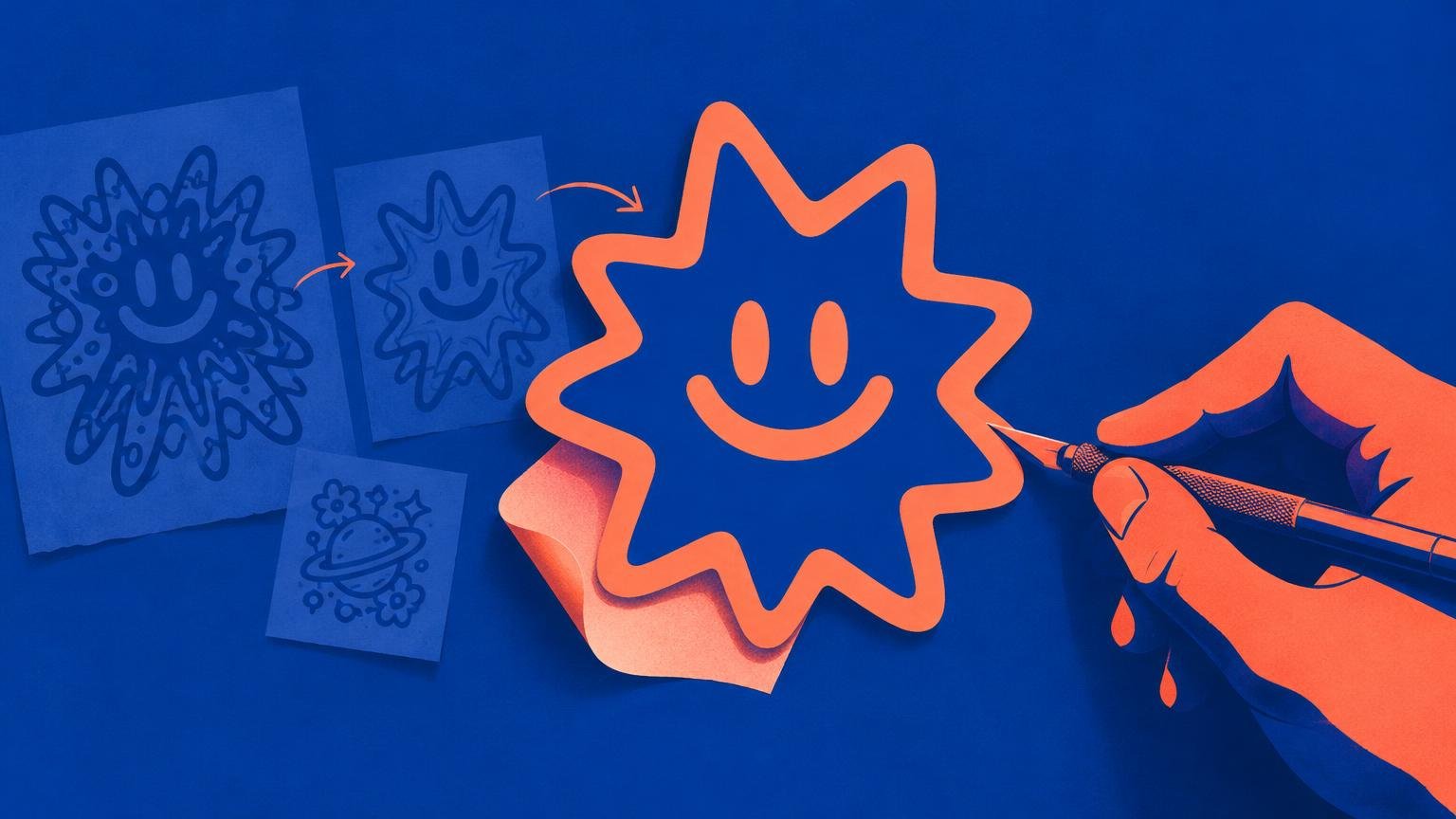
AI sticker generators are most useful as concept engines, not one-click printing presses. They can rapidly explore characters, mascots, lettering treatments and visual styles, but the first attractive image is rarely finished sticker art. A printable design still needs a clear silhouette, controlled detail, readable typography, deliberate margins and a file prepared for its material and cut shape.
The most reliable workflow is to generate a visually simple concept, refine it at the sticker’s intended physical size, rebuild weak elements and inspect a proof before production. This is where graphic design matters: a sticker is not merely a small illustration. It is an illustration transformed into a portable printed object.
Start with the sticker, not the image generator
Before writing a prompt, decide what kind of object you are making. A two-inch laptop sticker, a large window decal and a kiss-cut sticker sheet impose different demands. Identify the final dimensions, likely viewing distance, material, background surface and cutting format first.
Give the generator a compact design brief rather than a vague request for something “cool.” The OpenAI image-prompting guide recommends describing the subject, composition, visual medium, materials, color and placement constraints, then refining one element at a time. For isolated graphics, it also emphasizes a strong silhouette, balanced negative space, simple shapes, padding and clean transparent edges.
A useful starter prompt might specify: “A cheerful moth mascot for a two-inch die-cut sticker, centered three-quarter view, bold black outline, four flat spot colors, symmetrical wings, large simple eyes, no background, no text, generous clear space around antennae, screen-printed poster style.” That language communicates the visual idea and the production constraints.
Generate for reduction, not for the zoomed-in preview
AI images often look impressive when enlarged on a monitor because the viewer can see every highlight, texture and decorative fragment. A small sticker compresses those details. Hairline strokes disappear, neighboring shapes merge and tiny facial features become visual grit.
Judge every concept at its intended print size. If the sticker will be two inches wide, view it at approximately two inches on screen or print a paper mockup. Favor one dominant shape, a limited palette and clear gaps between important elements. This same discipline appears throughout successful sticker design trends: shape, typography and surface work together rather than competing for attention.
- Remove decorative marks that do not contribute to recognition.
- Thicken essential outlines and separate touching shapes.
- Reduce subtle color variations to a controlled palette.
- Protect fragile projections such as whiskers, spikes and antennae with enough surrounding space.
- Check whether the design remains recognizable in silhouette.
Choose raster or vector artwork deliberately
Raster images are built from pixels and can preserve painterly shading, texture and complex lighting. They can print well when their pixel dimensions support the final size. Vector graphics are built from editable paths, making them more adaptable for scaling, contour adjustment, palette changes and typographic repair.
| Format | Best suited to | Main preparation concern |
|---|---|---|
| High-resolution PNG | Painterly art, textured characters and transparent-background graphics | Confirm final pixel dimensions and a genuine alpha channel |
| SVG, AI or EPS | Flat icons, bold mascots, lettering and designs requiring contour edits | Inspect paths, overlaps, colors and generated text |
| JPG | Rectangular artwork without transparency | Avoid using it when an isolated transparent shape is required |
Adobe’s Text to Vector Graphic documentation describes controls for generating editable scenes, subjects and icons, including low-detail icon output, style references and restricted color palettes. Those controls can make vector generation a productive starting point for sticker art, but editable output is not automatically resolved design. Paths, lettering and contours still require human decisions.
For raster generation, request transparency explicitly and export a format that supports it, such as PNG or WebP. Then inspect the file rather than trusting the preview: a checkerboard may have been painted into the image, and pale halos or rough pixels may remain around the subject.
Treat AI lettering as a draft
Typography is where many generated sticker concepts collapse. A model may produce something resembling a word without constructing dependable letterforms. Even correctly spelled text can contain irregular spacing, unstable baselines or ambiguous characters.
Printer-specific limits matter. CustomStickers.com, for example, lists 0.5 point as its finest recommended line weight, 4 point as its smallest type and 6 point as its recommended type size for readability. These are useful warnings, not universal specifications; always check the requirements of the printer producing the job.
Design the material and cut shape together
Transparency in a digital file does not necessarily mean the finished sticker will be transparent. On conventional white vinyl, transparent regions can reveal the white sticker material rather than the application surface. A clear-sticker product is required when the surface beneath the sticker is intended to become part of the composition. The distinction is explored further in our guide to white versus clear stickers for colorful artwork.
The cut contour also changes the design’s character. A die-cut sticker is cut through its backing to follow the individual design, while a kiss-cut sticker remains on a larger backing and is often grouped on a sheet. A bold outer silhouette suits die cutting; fine projections and multiple small elements may be easier to handle within a kiss-cut field.
When the design is ready to order, customstickers.com offers custom stickers, vinyl materials and artwork-preparation options. Its published guidance says it typically adds a small border and prepares the cut line, while advanced artwork can separate Artwork and Cut Line layers. Because bleed and safety margins vary by printer and product, use the specification supplied for the actual order rather than carrying one template between vendors.
Prepare and proof the final file
Export the artwork at its final dimensions. One printer recommendation is 300 pixels per inch at final size, with high-resolution PNG and JPG files or vector formats such as SVG, AI and EPS accepted. Enlarging a very small source does not reliably restore missing detail, even when enhancement software makes the pixels look smoother.
Before approval, use a disciplined custom print proofing process. Inspect the outline, spelling, type size, borders, bleed, transparent areas and relationship between the art and cut contour. View the proof at actual size, not only magnified. If possible, print a paper mockup and place it on the kind of object the sticker is intended to occupy.
- Generate several simple concepts from a production-aware prompt.
- Select the concept with the strongest silhouette, not the most microscopic detail.
- Remove artifacts and rebuild important lettering or geometry.
- Set the exact dimensions and choose raster or vector output intentionally.
- Add sufficient margin, bleed and contour information for the chosen printer.
- Check the proof at actual size before approving production.
Keep meaningful human authorship in the process
There is also a rights question behind the workflow. The U.S. Copyright Office’s January 2025 report says copyright can protect human-authored expression within works containing AI-generated material, including creative selection, arrangement and modifications. It also says protection does not extend to purely AI-generated material where human control over expressive elements is insufficient, and that prompts alone generally do not provide sufficient control for authorship with currently available technology. Copyrightability remains case-specific. Read the Copyright Office report.
That gives designers another reason to move beyond the raw output. Select, redraw, combine, typeset, edit and document the meaningful choices that turn a generated image into a designed artifact. Avoid requesting living artists’ signatures, recognizable protected characters or other material you lack permission to use.
The best AI sticker workflow ends with design judgment
A generator can accelerate visual exploration, but it cannot decide how a tiny object should read in someone’s hand, on a package or across a crowded sticker sheet. Begin with format and scale, prompt for a bold isolated composition, simplify ruthlessly, rebuild the type and proof the actual printed object. The strongest result will not look like an AI image squeezed into sticker form. It will look like a sticker that happened to begin with AI.